Old eBook Reader, New Tricks: The Tolino Vision 2 in 2027
📆 2026-10-27 15:31
I recently bought a Tolino Vision 2 on an online marketplace for $50. Not exactly the latest piece of technology, but hey, a perfectly good e-reader shouldn't be left behind just because it's old.
Of course, buying an old gadget in 2026/2027 means one thing: it's time to drag it kicking and screaming into the present. I installed KOReader, connected it to my self-hosted BookOrbit server, and even figured out how to use the back-tap sensor for turning pages.
Here's how I brought this little e-reader back to life and made it fit into my life in 2026/2027.
Connect the Tolino Vision 2 to my Arch computer
To communicate with the Tolino, I installed Android Debug Bridge on my Arch Linux computer:
Connect the Tolino over USB, enable USB debugging if necessary (how to enable adb is below), and check that ADB can see it:
Make sure to also enable the storage driver in case you plan on copying books to it via the microUSB cable.
Installing Apps to bring the Tolino Vision 2 into the future
By default, the Tolino Vision 2 boots up and loads Tolino's app. The app is fine for reading but, as mentioned earlier, we're bringing it into the future with syncing, custom fonts, browing our own OPDS catalog for browsing and downloading books.
Preparing the Tolino
- Open default Tolino App
- Enter search by clicking the magnifying glass icon.
- Enter following codes depending on what version you are running:
Entering debug menu in the default Tolino app
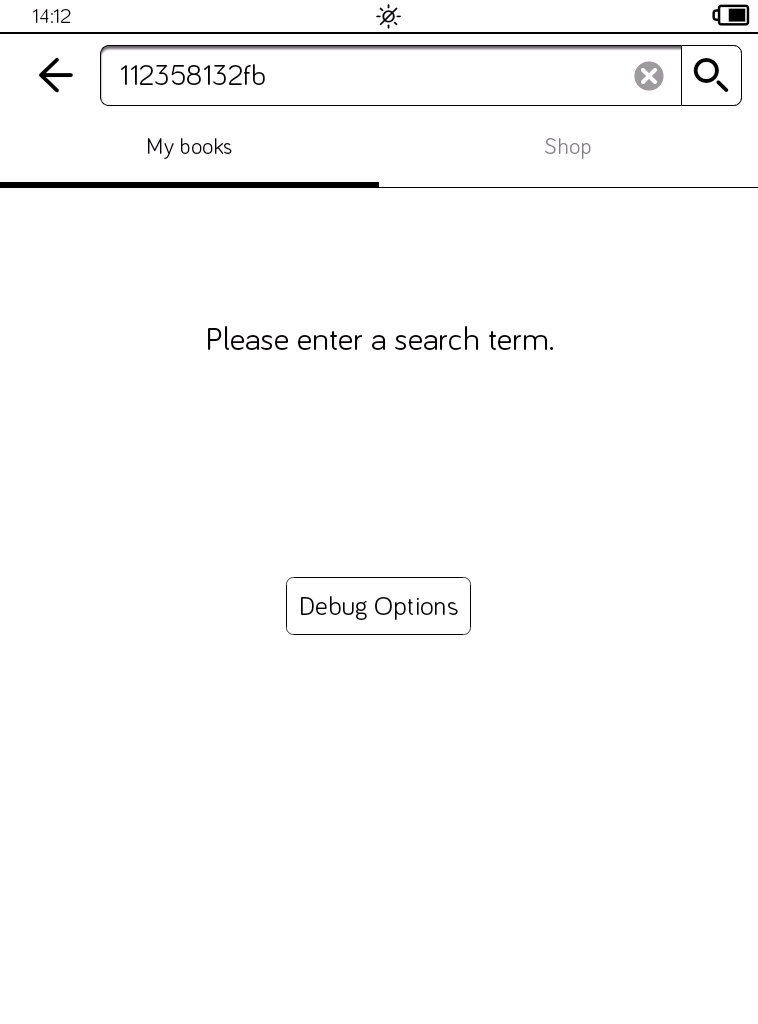
Enabling ADB from the debug menu
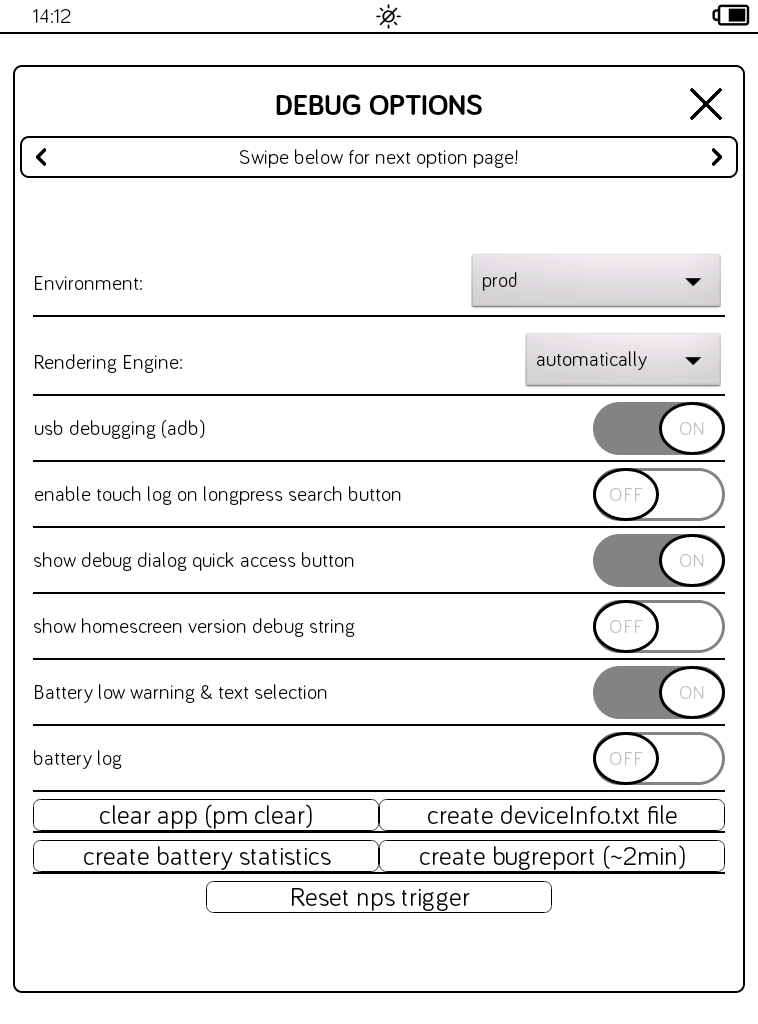
- This will bypass the standard search results and directly launch the hidden Android developer / system debug menu.
- In the Debug Menu, locate the option labeled USB Debugging (or Android Debugging).
- Flip the switch or check the box to change it to Enabled.
- (Highly Recommended) Look for the option called "Show debug dialog quick access button" and turn it on also. This will create a permanent shortcut button in your search menu so you don't have to re-type the long Fibonacci code every time you restart.
Now that we can "control" the Tolino with adb it's time to install 2 apps. You can download the exact versions I used for my Tolino Vision 2 from:
Tolino Vision 2 Apps Used by me (100% working)
There you'll find:
- KOReader ARM version 2026.07.1
- Simple Ink Launcher version 1.2
- 3 more useful files :-)
If you are from the future and want newer versions you can Google them.
Install Simple Ink Launcher
To make the Tolino Vision 2 a little more comfortable to use, I first installed Simple Ink Launcher. It replaces the stock launcher (Tolino app) with a simpler interface better suited to an e-ink screen, making it easier to launch KOReader and other installed apps without fighting the old Tolino app. Installing is as simple as:
With Simple Ink Launcher you can:
select the default reading application,
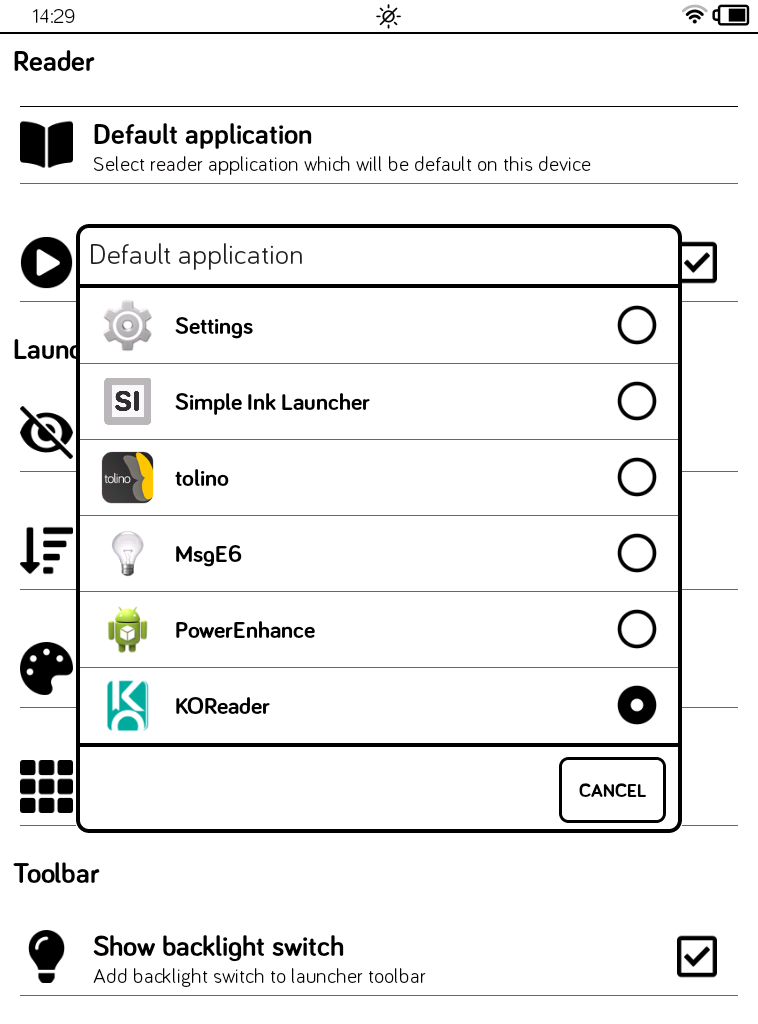
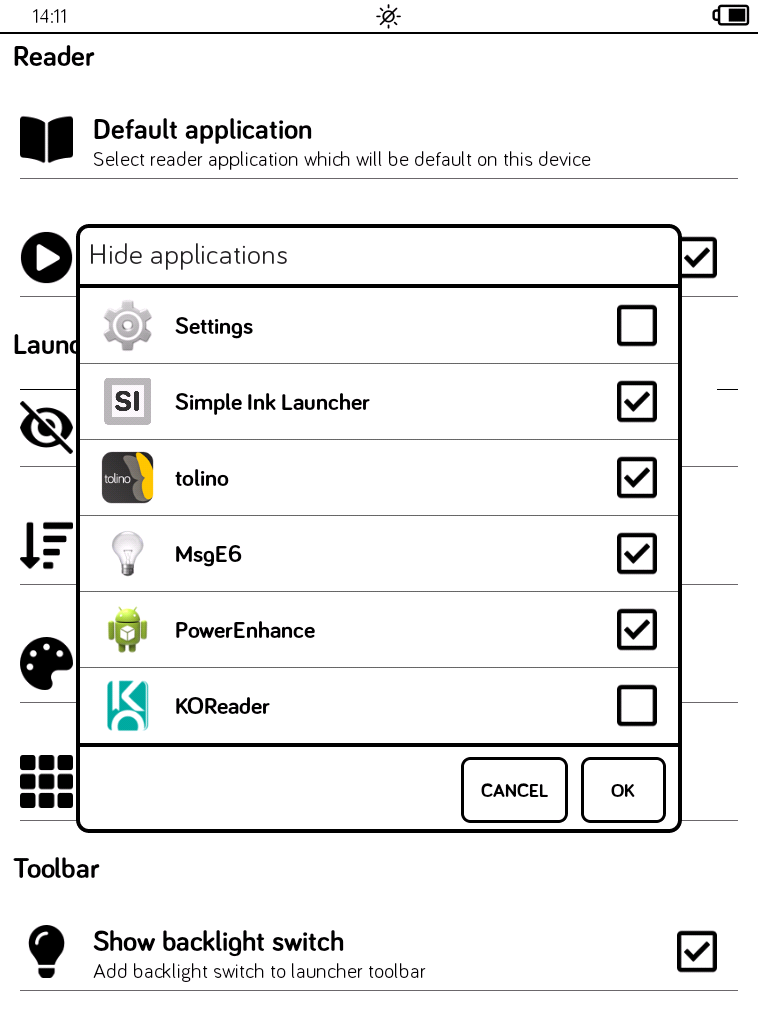
Install KOReader
KOReader is a free, open source ebook reader designed for e-ink devices. It supports a wide range of ebook formats, offers extensive customization options, and has a lot more useful features that you'll surely love. Installing it is, yes, as simple as installing Simple Ink Launcher:
If the word "Success" appeared for both apps reboot the Tolino Vision 2. You'll be greeted with the already known Android dialog: "Complete action using". Make sure you choose Simple Ink Launcher and Always.
Just in case you open the default Tolino default app again you will have to restart the device.
I haven't found a way to close the default Tolino app without rebooting the device.
Setup BookOrbit
Install BookOrbit
First, I installed BookOrbit on my server using Docker. This gives me a self-hosted place to manage my ebook library and synchronize reading progress.
Installing BookOrbit is easy using Docker. Check out:
BookOrbit Documentation - Installation
Install BookOrbit KOReader plugin
- Download the preconfigured plugin located in BookOrbit > Settings > KOReader
- Unzip it and copy bookorbit.koplugin to koreader/plugins/ on your device.
- Restart KOReader. The server and login are configured automatically.
- Open Browse BookOrbit to search, download, and link books to sync.
BookOrbit KOReader plugin setup
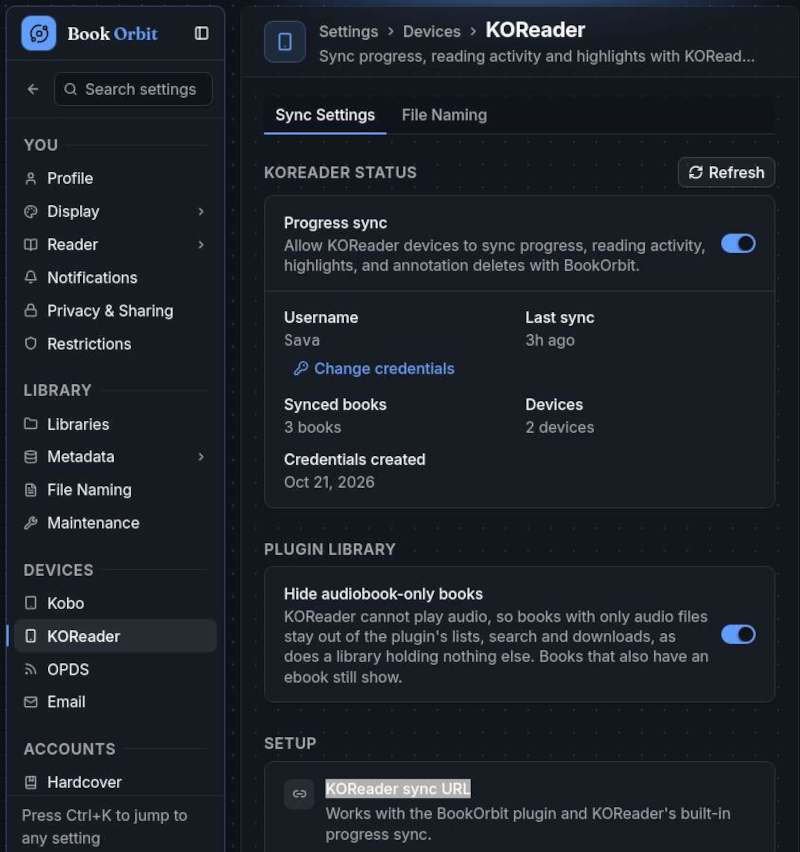
Stock progress sync plugin
- On your KOReader device, go to KOReader >Tools > Progress sync.
- Set the custom sync server to the URL shown under KOReader sync URL in BookOrbit > Settings > KOReader
- Enter the username and password you created, then tap Login.
You can now open the BookOrbit plugin with a swipe from the top and a tap on the BookOrbit logo:
Launch BookOrbit from KOReader
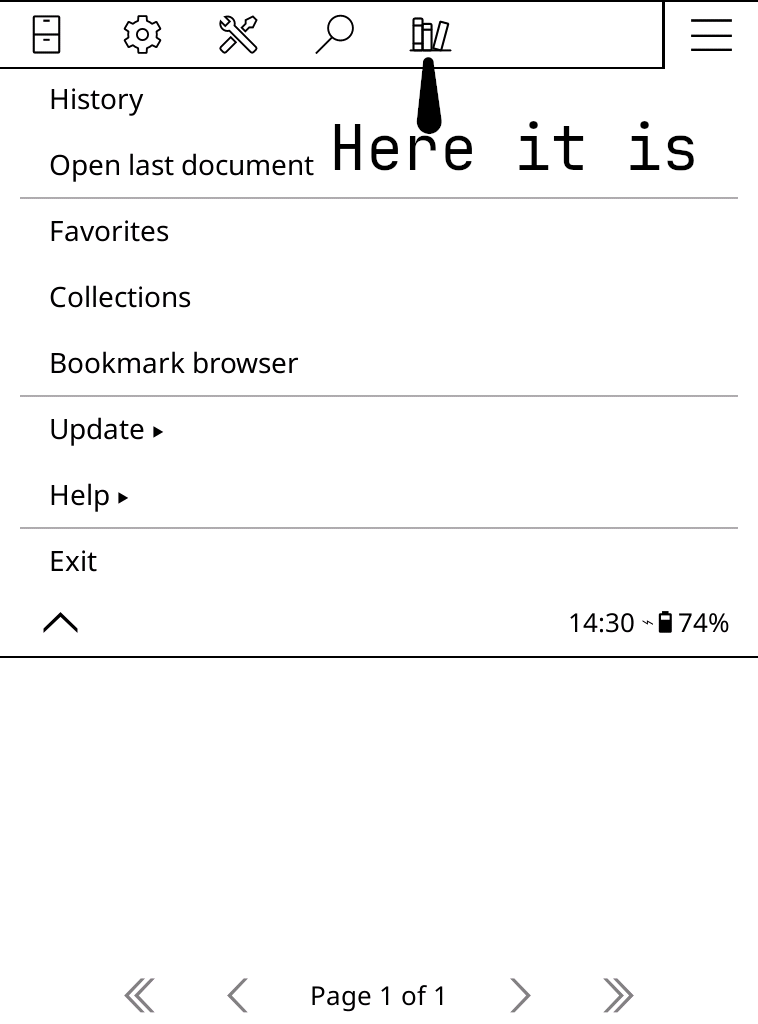
You can download your books from there for offline reading. Syncing will be made once you connect the Tolino Vision 2 to a WiFi network again.
Custom fonts
I'm a big fan of the JetBrains Mono font. I use it in my terminal, on the https version of this gemini capsule, and now in the KOReader app. To install custom fonts in KOReader you have to download TTF fonts and put them in the fonts directory on your Tolino:
Custom key mappings: back tap your Tolino Vision 2
Download the file https://downloads.sava.rocks/TolinoVision2/event_map.lua and place it inside the folder koreader -> settings
It should look like this:
You can also edit the back tap to do another action. The file event_map.lua has it mapped to the page forward action (RPgFwd) in KOReader.
Look mom, I can turn the page by tapping the back of the device!
Photos and a screenshot of my Tolino Vision 2
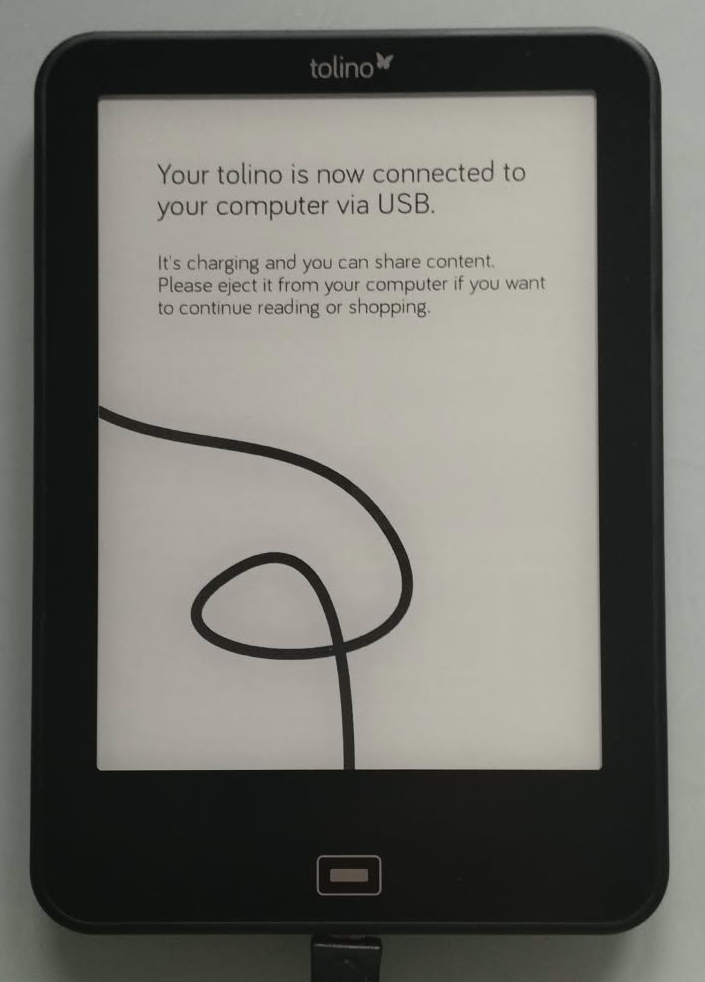
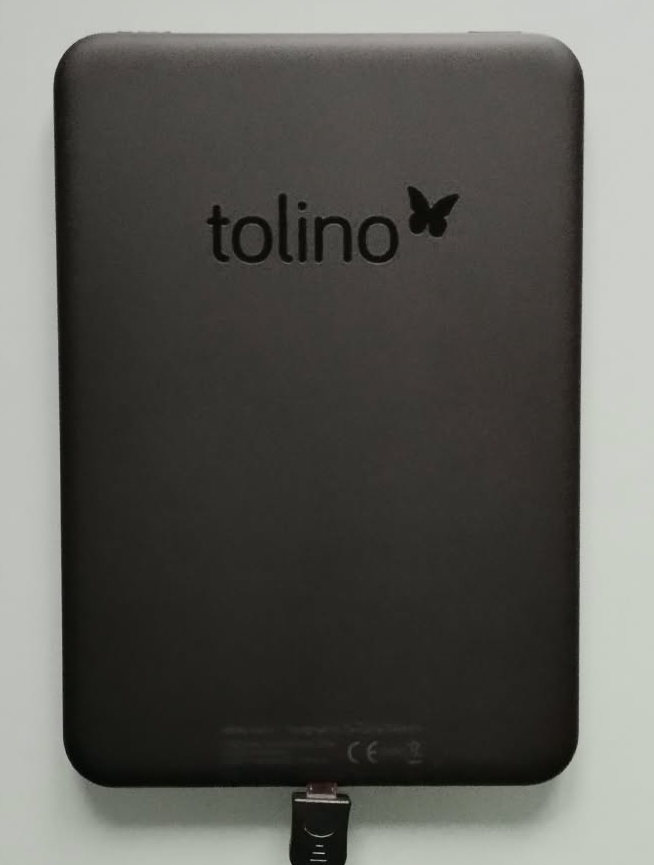
Tolino Vision 2 with my BookOrbit instace loaded
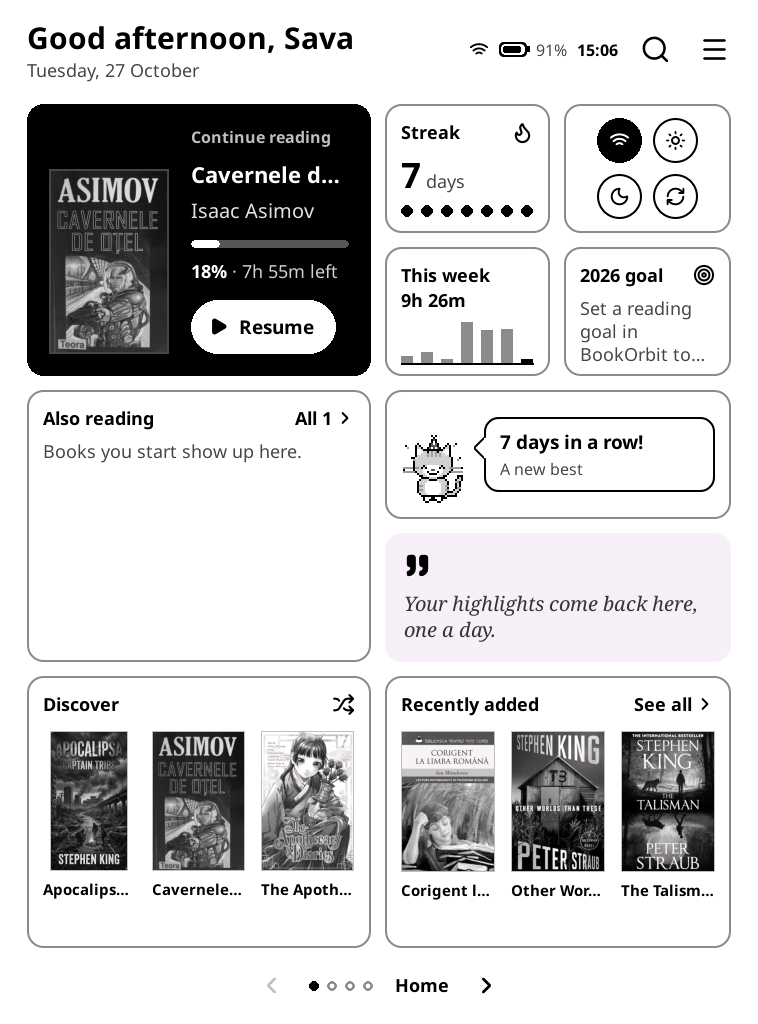
As you can see, I've been putting my Tolino Vision 2 to good use. I've been reading every day for the past seven days, and that's probably the best sign that this little $50 gadget was worth it. With KOReader, BookOrbit, and a few tweaks, it has everything I need in order to read without the distractions of a phone or tablet.
As always, there's something genuinely awesome about bringing an old device back to life and making it fit your own needs instead of replacing it with something newer. All that was needed:
- a little love,
- some tinkering,
- open source awesome apps
- and the usual amount of stubbornness needed to make things work.