Staying Organized with todo.txt and the todo CLI
📆 2026-04-17 12:40
Keeping track of tasks shouldn't require a complex system. Sometimes, a simple text file is all you need. That's where todo.txt and the todo CLI shine.
What is todo.txt?
todo.txt is a plain text-based task management system. Each task lives on its own line in a file called todo.txt. No databases, no lock-in-just simple, portable text.
Why use the todo CLI?
The todo CLI is a command-line tool that helps you manage your todo.txt file efficiently. It adds structure without sacrificing simplicity.
Benefits:
- Fast and keyboard-driven
- Works anywhere (local, SSH, containers)
- Easy to version control
- Completely transparent format
Getting Started
Install the CLI (varies by system)
then initialize your todo list:
List your tasks:
Mark a task as done:
That's it - you're already using it.
Organizing Tasks
Projects with +
Use +project to group tasks:
Contexts with @
Use @context to indicate where, who or how a task gets done:
Priorities
Add priorities like (A), (B):
Searching and Filtering
You can quickly filter tasks:
This makes it easy to focus on what matters right now.
Highlighting Due and Overdue Tasks
One small tweak made a big difference in my workflow: automatically showing urgent tasks whenever I open a terminal.
Here's the function I use:
How it works
- it grabs today's date in YYYY-MM-DD format
- scans each task for a date (like [2026-04-10])
- compares it with today
- highlights overdue tasks in red
- highlights tasks due today in yellow
Running it automatically
To make this part of my daily flow, I call it whenever I start a terminal. Add this to your shell config (~/.bashrc, ~/.zshrc, etc.):
Here's another post in which I describe how I organize my .bashrc with imports from other files:
How I Organize My .bashrc with Imports
Screenshots of this function in action
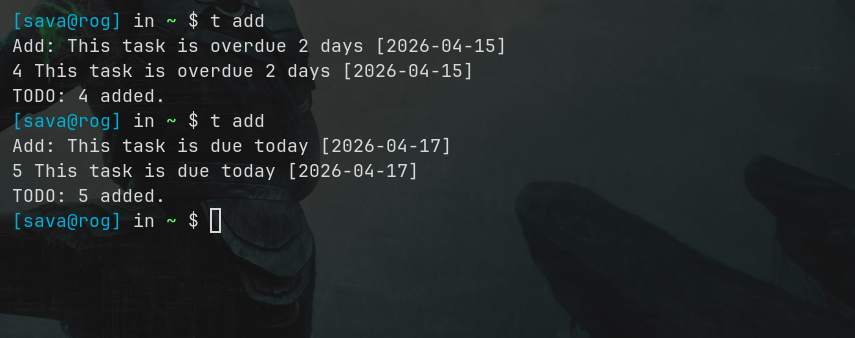
In the above screenshot you can see I use t add. That's because I have an alias for todo.sh:
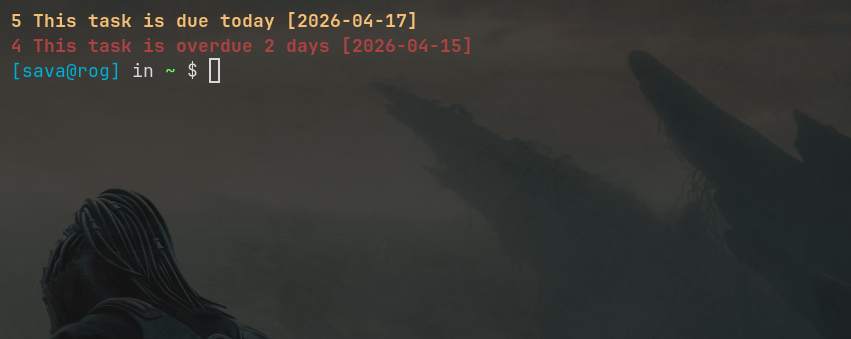
As you can see, whenever I fire up a new terminal tasks overdue are shown in red and today's tasks are shown in yellow.
Now every new terminal session gives me a quick, visual reminder of what actually needs attention-no extra commands required.
Why It Works
The power of todo.txt comes from constraints:
- no over-engineering
- no distractions
- just tasks
Because it's plain text, you can:
- sync it with Git
- edit it in any editor
- script around it
Tips for Daily Use
- keep it open in a terminal tab
- review tasks in the morning
- archive completed tasks regularly
- don't overcomplicate your tagging
Final Thoughts
If you're tired of bloated productivity apps, give todo.txt a try. It's minimal, flexible, and surprisingly powerful.
Todo.txt If you want to get it done, first write it down.
Sometimes, the best tool is just a text file and a few well placed shell functions.