The new laptop uses PureOS, a Debian variant, and thus will not use the Apple Timemachine backup disks. What else to use? I asked around on Mastodon:
What do you use to backup an entire GNU/Linux laptop to an external disk? Ideally it would be a bootable backup, of course, but that’s not mandatory. Déjà Dup Backup Tool seems to be designed for just user data. Duplicity still generates opaque files. Ideally, I’d use an encrypted external disk and just rsync every hour if the disk is mounted, and delete old backups when running out of space. Does this wrapper script already exist? Something like Time Machine for every Unix out there.
Déjà Dup Backup Tool
Duplicity
Time Machine for every Unix out there
I mean that rsync creates linked trees that look like complete sets of backups for every time period, and thus you can delete old link trees the actual file content will only get deleted when it is not referred to anymore. You basically want a clever use of the `--link-dest` parameter, as illustrated in the linked article. That also solves the problem with `--delete` deleting files in your backup.
Radomir suggested Borgbackup and that is what I went with. I still don’t like the opaque file format, but I have to start somewhere.
Borgbackup
Following the tutorial Automated backups to a local hard drive, I run only into a small number of problems.
Automated backups to a local hard drive
1. you have to `mkdir /mnt/backup/borg-backups` before creating the repo
2. you have to `chmod +x run.sh` before running it
3. if you create your repo using `borg init --encryption=repokey --progress /mnt/backup/borg-backups/backup.borg` you will type in a key and you then need to `export BORG_PASSPHRASE="*secret*"` in `run.sh` as indicated by the comment somewhere in the middle
When all that was done, it still wouldn’t run using `systemctl start --no-block automatic-backup`.
Here’s what it says when I check using `journalctl -fu automatic-backup`:
-- Logs begin at Sat 2017-12-23 14:10:29 CET. --
Dec 24 15:45:09 melanobombus run.sh[32376]: EOFError
Dec 24 15:45:09 melanobombus run.sh[32376]: Platform: Linux melanobombus 4.13.0-1-amd64 #1 SMP Debian 4.13.10-1 (2017-10-30) x86_64
Dec 24 15:45:09 melanobombus run.sh[32376]: Linux: PureOS 8 green
Dec 24 15:45:09 melanobombus run.sh[32376]: Borg: 1.1.3  Python: CPython 3.6.4rc1
Dec 24 15:45:09 melanobombus run.sh[32376]: PID: 32397  CWD: /
Dec 24 15:45:09 melanobombus run.sh[32376]: sys.argv: ['/usr/bin/borg', 'create', '--stats', '--one-file-system', '--compression', 'lz4', '--checkpoint-interval', '86400', '--exclude', '/root/.cache', '--exclude', '/var/cache', '--exclude', '/var/lib/docker/devicemapper', '/mnt/backup/borg-backups/backup.borg::2017-12-24-melanobombus-32376-system', '/', '/boot']
Dec 24 15:45:09 melanobombus run.sh[32376]: SSH_ORIGINAL_COMMAND: None
Dec 24 15:45:09 melanobombus systemd[1]: automatic-backup.service: Main process exited, code=exited, status=2/INVALIDARGUMENT
Dec 24 15:45:09 melanobombus systemd[1]: automatic-backup.service: Failed with result 'exit-code'.
Dec 24 15:45:09 melanobombus systemd[1]: Failed to start automatic-backup.service.
But I was able to run it manually using `/usr/bin/borg create --stats --one-file-system --compression lz4 --checkpoint-interval 86400 --exclude /root/.cache --exclude /var/cache --exclude /var/lib/docker/devicemapper /mnt/backup/borg-backups/backup.borg::2017-12-24-melanobombus-32376-system / /boot` and `/usr/bin/borg create --stats --one-file-system --compression lz4 --checkpoint-interval 86400 --exclude 'sh:/home/*/.cache' /mnt/backup/borg-backups/backup.borg::2017-12-24-melanobombus-32376-home /home/` so I’m not quite sure what the problem is.
Any ideas?
*I just came back* from the family event, ran `run.sh` as root, no problems. Then I started the backup service via `systemctl`, no problem. I guess it just works, for the moment?
In theory, plugging in the drive should now mount it automatically and once that happens, a new backup will be made.
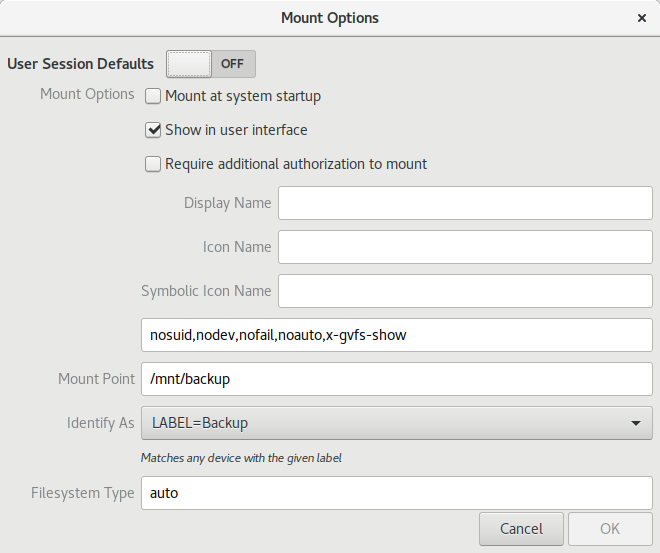
This last part actually needs an explanation. I used the /Disks/ application to format the external disk and mount it.
Screenshot of the Disk app
This resulted in a change to `/etc/fstab`:
LABEL=Backup /mnt/backup auto nosuid,nodev,nofail,noauto,x-gvfs-show 0 0
Thus, any disk labeled “Backup” will be mounted as `/mnt/backup`.
/etc/backups
Let me quickly copy and paste the content of the various files in `/etc/backups` just in case the original documentation changes.
/etc/backups $ ls -l
total 5
-rw-r--r--   1 root           root      130 2017-12-24 15:28 40-backup.rules
-rw-r--r--   1 root           root        0 2017-12-24 15:30 autoeject-no
-rw-r--r--   1 root           root       53 2017-12-24 15:28 automatic-backup.service
-rw-r--r--   1 root           root       37 2017-12-24 15:33 backup.disks
-rwx------   1 root           root     2712 2017-12-24 15:46 run.sh
-rwx------   1 root           root     2665 2017-12-24 15:29 run.sh~
40-backup.rules
You installed a symlink to this file using `ln -s /etc/backups/40-backup.rules /etc/udev/rules.d/40-backup.rules`.
ACTION=="add", SUBSYSTEM=="bdi", DEVPATH=="/devices/virtual/bdi/*", TAG+="systemd", ENV{SYSTEMD_WANTS}="automatic-backup.service"
autoeject-no
This is an empty file for me to rename. If the file `autoeject` exists, the disk will be ejected after the backup is made. I don’t know whether I will use this feature. This file serves as a reminder. See the end of `run.sh` for details.
(I eventually renamed it to `autoeject`.)
automatic-backup.service
You installed a symlink to this file using `ln -s /etc/backups/automatic-backup.service /etc/systemd/system/automatic-backup.service`.
[Service]
Type=oneshot
ExecStart=/etc/backups/run.sh
backup.disks
This is the number derived from `lsblk -o+uuid,label`. It will differ from what you need to put here! This lists the disks that are actual backup disks. All the others will be ignored by `run.sh` even if they are mounted as `/mnt/backup`.
7c478832-5d7f-43d3-9b79-20cfc67fb0e6
When I ran `lsblk -o+uuid,label` I also saw that the disk was `/dev/sdb`. To mount it for the first time: `mount /dev/sdb /mnt/backup`. Run `mkdir /mnt/backup/borg-backups` to create the directory. Run `borg init --encryption=repokey --progress /mnt/backup/borg-backups/backup.borg` to create the repo in that directory.
run.sh
Don’t forget to search for `BORG_PASSPHRASE` and change it to whatever you used when you ran `borg init --encryption=repokey --progress /mnt/backup/borg-backups/backup.borg`.
Run `sudo chmod 0700 run.sh*` to hide the passphrase from everybody else and to make it executable.
#!/bin/bash -ue

# The udev rule is not terribly accurate and may trigger our service before
# the kernel has finished probing partitions. Sleep for a bit to ensure
# the kernel is done.
#
# This can be avoided by using a more precise udev rule, e.g. matching
# a specific hardware path and partition.
sleep 5

#
# Script configuration
#

# The backup partition is mounted there
MOUNTPOINT=/mnt/backup

# This is the location of the Borg repository
TARGET=$MOUNTPOINT/borg-backups/backup.borg

# Archive name schema
DATE=$(date --iso-8601)-$(hostname)

# This is the file that will later contain UUIDs of registered backup drives
DISKS=/etc/backups/backup.disks

# Find whether the connected block device is a backup drive
for uuid in $(lsblk --noheadings --list --output uuid)
do
        if grep --quiet --fixed-strings $uuid $DISKS; then
                break
        fi
        uuid=
done

if [ ! $uuid ]; then
        echo "No backup disk found, exiting"
        exit 0
fi

echo "Disk $uuid is a backup disk"
partition_path=/dev/disk/by-uuid/$uuid
# Mount file system if not already done. This assumes that if something is already
# mounted at $MOUNTPOINT, it is the backup drive. It won't find the drive if
# it was mounted somewhere else.
(mount | grep $MOUNTPOINT) || mount $partition_path $MOUNTPOINT
drive=$(lsblk --inverse --noheadings --list --paths --output name $partition_path | head --lines 1)
echo "Drive path: $drive"

#
# Create backups
#

# Options for borg create
BORG_OPTS="--stats --one-file-system --compression lz4 --checkpoint-interval 86400"

# Set BORG_PASSPHRASE or BORG_PASSCOMMAND somewhere around here, using export,
# if encryption is used.
export BORG_PASSPHRASE="*secret*"

# No one can answer if Borg asks these questions, it is better to just fail quickly
# instead of hanging.
export BORG_RELOCATED_REPO_ACCESS_IS_OK=no
export BORG_UNKNOWN_UNENCRYPTED_REPO_ACCESS_IS_OK=no

# Log Borg version
borg --version

echo "Starting backup for $DATE"

borg create $BORG_OPTS \
  --exclude /root/.cache \
  --exclude /var/cache \
   $TARGET::$DATE-$$-system \
  /

echo "Completed backup for $DATE"

borg prune                          \
    --list                          \
    --show-rc                       \
    --keep-daily    7               \
    --keep-weekly   4               \
    --keep-monthly  6               \
    $TARGET

# Just to be completely paranoid
sync

if [ -f /etc/backups/autoeject ]; then
        umount $MOUNTPOINT
        hdparm -Y $drive
fi

if [ -f /etc/backups/backup-suspend ]; then
        systemctl suspend
fi
Examining the backups
Listing the archives:
$ sudo borg list /mnt/backup/borg-backups/backup.borg
Enter passphrase for key /mnt/backup/borg-backups/backup.borg:
2017-12-24-melanobombus-32376-home   Sun, 2017-12-24 16:10:27 [64279b2b27c17174ce8673e0eb8b1e9c8f16057300baf7edf1a1491facb87eba]
2017-12-25-melanobombus-3598-system  Mon, 2017-12-25 01:36:41 [2c28d0fa20d3e8cc818c21c3273abedd6c5dd113034ac88a0b08800aeb4215d5]
2017-12-26-melanobombus-3809-system  Tue, 2017-12-26 19:09:22 [f5df4b0dc7d280317591e599e3c715fcfaa89e260fbdf300237980314ad8d894]
Mounting an archive:
$ sudo mkdir /mnt/borg
$ sudo borg mount /mnt/backup/borg-backups/backup.borg::2017-12-26-melanobombus-3809-system /mnt/borg
Enter passphrase for key /mnt/backup/borg-backups/backup.borg:
$ sudo ls /mnt/borg/etc/backups
40-backup.rules  autoeject-no  automatic-backup.service  backup.disks  run.sh  run.sh~
Looking good!
☯
Todo:
Handle exit codes? See Automatic backups.
Automatic backups
☯
Now that I have seen it all in action, perhaps Déjà Dup Backup Tool is close enough? After all, I still have opaque files, now. 😟 And Déjà Dup is well integrated in the system...
Déjà Dup Backup Tool
#Backup #Borg
(Please contact me if you want to remove your comment.)
⁂
Moin Alex, nice post!
Some comments:
“you have to `mkdir /mnt/backup/borg-backups` before creating the repo”
borg creates the repo dir if it does not exist, but maybe it does not create missing parent dirs of it. Not sure if that would be an improvement if it did, esp. considering typos.
“`--checkpoint-interval 86400`”
be careful with a that long checkpoint interval. you will lose up to a day of “backup work” if the connection breaks down before finishing.
“`DATE=$(date --iso-8601)-$(hostname)`”
borg can expand `{utcnow}-{hostname}` internally.
“`borg --version`”
`borg create ... --show-version ...` (similar to `--show-rc`)
borg prune: maybe add `--stats` so it tells how much repo space it freed.
systemd issues: no idea
Cheers, Thomas
– Thomas Waldmann 2017-12-29 01:08 UTC
Thomas Waldmann
---
Thank you for the comments!
I read up on the various options and changed the script to now run as follows:
borg create                         \
     --stats                        \
     --one-file-system              \
     --compression lz4              \
     --show-version                 \
     --exclude /root/.cache         \
     --exclude /var/cache           \
     $TARGET::{utcnow}-{hostname}   \
     /

borg prune                          \
     --stats                        \
     --list                         \
     --show-rc                      \
     --keep-daily    7              \
     --keep-weekly   4              \
     --keep-monthly  6              \
     $TARGET
– Alex 2017-12-29 13:20 UTC
---
As a reminder to myself: what to do when you want to add another disk to your rotating disk schedule?
1. I used the disk utility to format and partition the backup disk. Partitioning: GUID Partition Table. Volume: Ext4.
2. `mkdir /mnt/backup/borg-backups/`
3. `borg init --encryption=repokey --progress /mnt/backup/borg-backups/backup.borg`
4. use the same password as I provided in `/etc/backups/run.sh`
5. use `lsblk --list --output=uuid,mountpoint` to find the new UUID
6. add this UUID to `/etc/backups/backup.disks`
Unmount the disk and unplug it, then plug it again and look at the output of `sudo journalctl -fu automatic-backup`.
– Alex Schroeder 2018-02-08 07:06 UTC
---
Make sure you check the journal! Today I ran `sudo journalctl -fu automatic-backup` and saw:
Feb 16 14:14:18 melanobombus systemd[1]: Starting automatic-backup.service...
Feb 16 14:14:24 melanobombus run.sh[1728]: No backup disk found, exiting
Feb 16 14:14:24 melanobombus systemd[1]: Started automatic-backup.service.
I was confused but finally decided to just try again, running `sudo umount /mnt/backup` and unplugging the disk, plugging it back in again, and then it worked:
Feb 16 14:22:28 melanobombus systemd[1]: Starting automatic-backup.service...
Feb 16 14:22:33 melanobombus run.sh[3102]: Disk 156cf4df-aa58-421e-b3d0-583fe6fdff4a is a backup disk
Feb 16 14:22:33 melanobombus run.sh[3102]: /dev/sdb1 on /mnt/backup type ext4 (rw,nosuid,nodev,relatime,data=ordered,x-gvfs-show)
Feb 16 14:22:33 melanobombus run.sh[3102]: Drive path: /dev/sdb1
...
Weird!
– Alex Schroeder 2018-02-16 13:24 UTC
---
Here’s something that happened when I plugged a very old backup disk into my laptop:
May 08 12:38:14 melanobombus systemd[1]: Starting automatic-backup.service...
May 08 12:38:14 melanobombus kernel:  sdb: sdb1
May 08 12:38:14 melanobombus kernel: sd 2:0:0:0: [sdb] Attached SCSI disk
May 08 12:38:15 melanobombus kernel: EXT4-fs (sdb1): mounted filesystem with ordered data mode. Opts: (null)
May 08 12:38:15 melanobombus udisksd[653]: Mounted /dev/sdb1 (system) at /mnt/backup on behalf of uid 1000
May 08 12:38:15 melanobombus dbus-daemon[1668]: [session uid=1000 pid=1668] Activating service name='org.gnome.Shell.HotplugSniffer' requested by ':1.14' (uid=1000 pid=1704 comm="/usr/bin/gnome-shell ")
May 08 12:38:15 melanobombus dbus-daemon[1668]: [session uid=1000 pid=1668] Successfully activated service 'org.gnome.Shell.HotplugSniffer'
May 08 12:38:16 melanobombus sudo[7711]:     alex : TTY=pts/1 ; PWD=/etc/backups ; USER=root ; COMMAND=/bin/journalctl -fu automatic-backup
May 08 12:38:16 melanobombus sudo[7711]: pam_unix(sudo:session): session opened for user root by (uid=0)
May 08 12:38:19 melanobombus run.sh[7681]: Disk 7c478832-5d7f-43d3-9b79-20cfc67fb0e6 is a backup disk
May 08 12:38:19 melanobombus run.sh[7681]: /dev/sdb1 on /mnt/backup type ext4 (rw,nosuid,nodev,relatime,x-gvfs-show)
May 08 12:38:19 melanobombus run.sh[7681]: Drive path: /dev/sdb1
May 08 12:38:19 melanobombus run.sh[7681]: borgbackup version 1.1.9
May 08 12:38:20 melanobombus run.sh[7681]: Failed to create/acquire the lock /mnt/backup/borg-backups/backup.borg/lock.exclusive (timeout).
May 08 12:38:20 melanobombus systemd[1]: automatic-backup.service: Main process exited, code=exited, status=2/INVALIDARGUMENT
May 08 12:38:20 melanobombus systemd[1]: automatic-backup.service: Failed with result 'exit-code'.
May 08 12:38:20 melanobombus systemd[1]: Failed to start automatic-backup.service.
What does “Failed to create/acquire the lock /mnt/backup/borg-backups/backup.borg/lock.exclusive” mean? It means that there are lock files in the old backup directory. The solution is the “break-lock” subcommand.
sudo borg break-lock /mnt/backup/borg-backups/backup.borg/
– Alex 2021-05-08 10:45 UTC