Email with aerc, pass, gpg and khard - Modern Email in the Terminal
📆 2026-06-03 10:10
I mentioned aerc in my post "Living in the terminal" [1] and have just realized that I didn't write a post on installing and configuring aerc. This setup provides a fast, keyboard-driven mail experience with contacts accessible from the command line.
Screenshots of my aerc setup
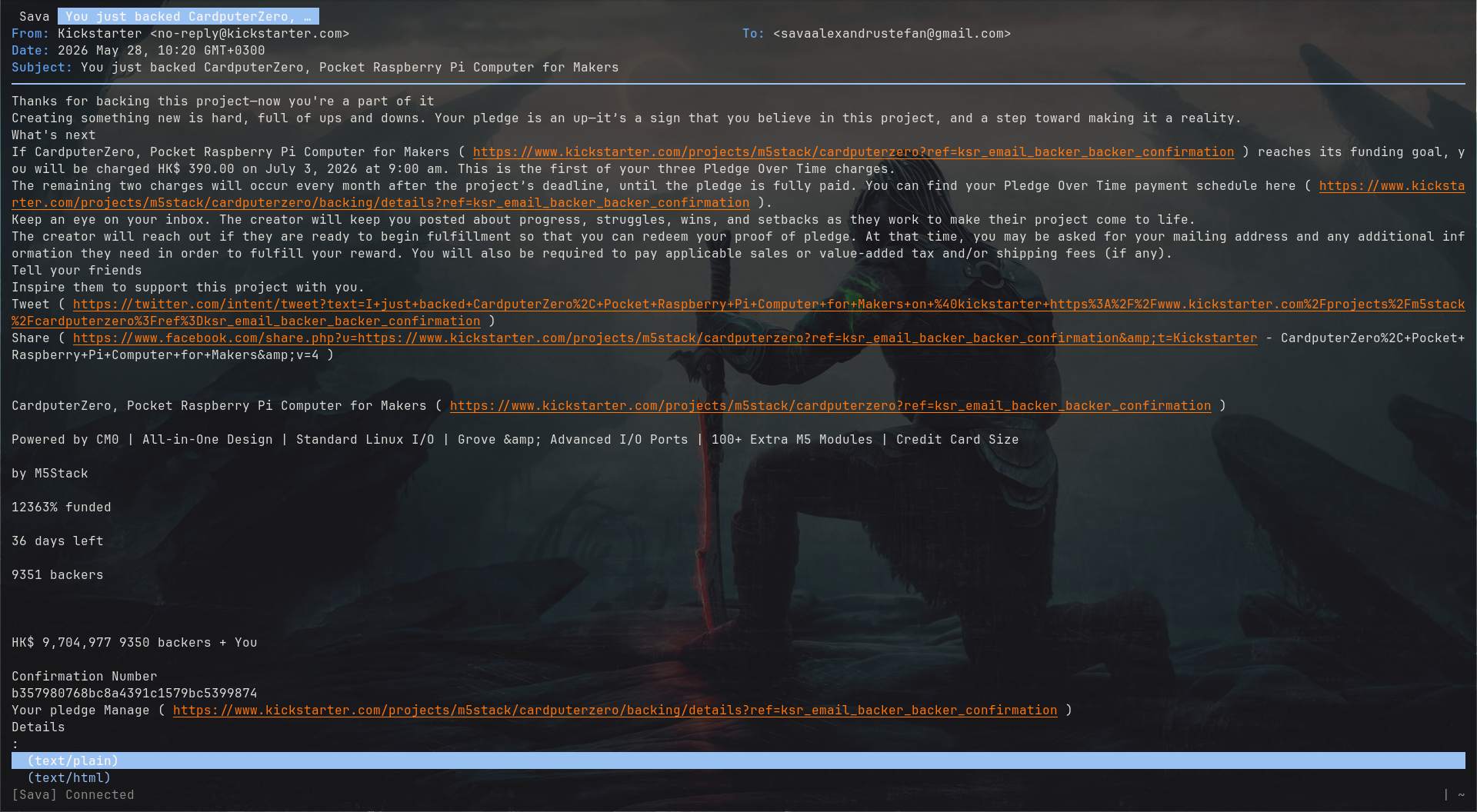
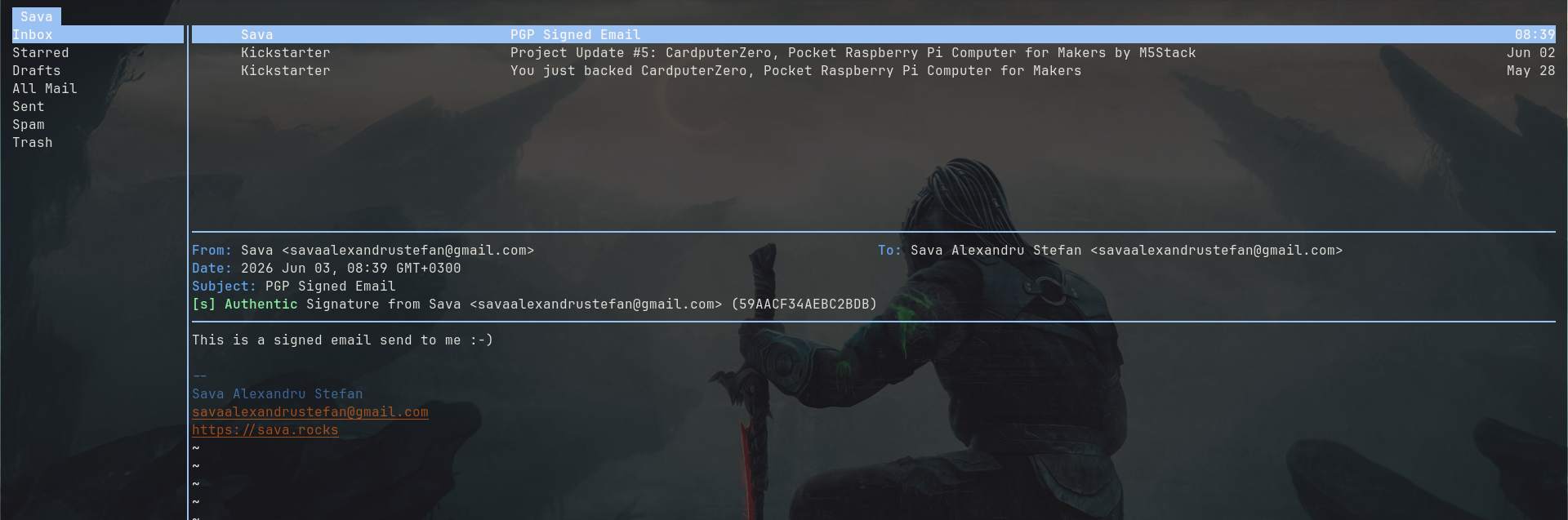
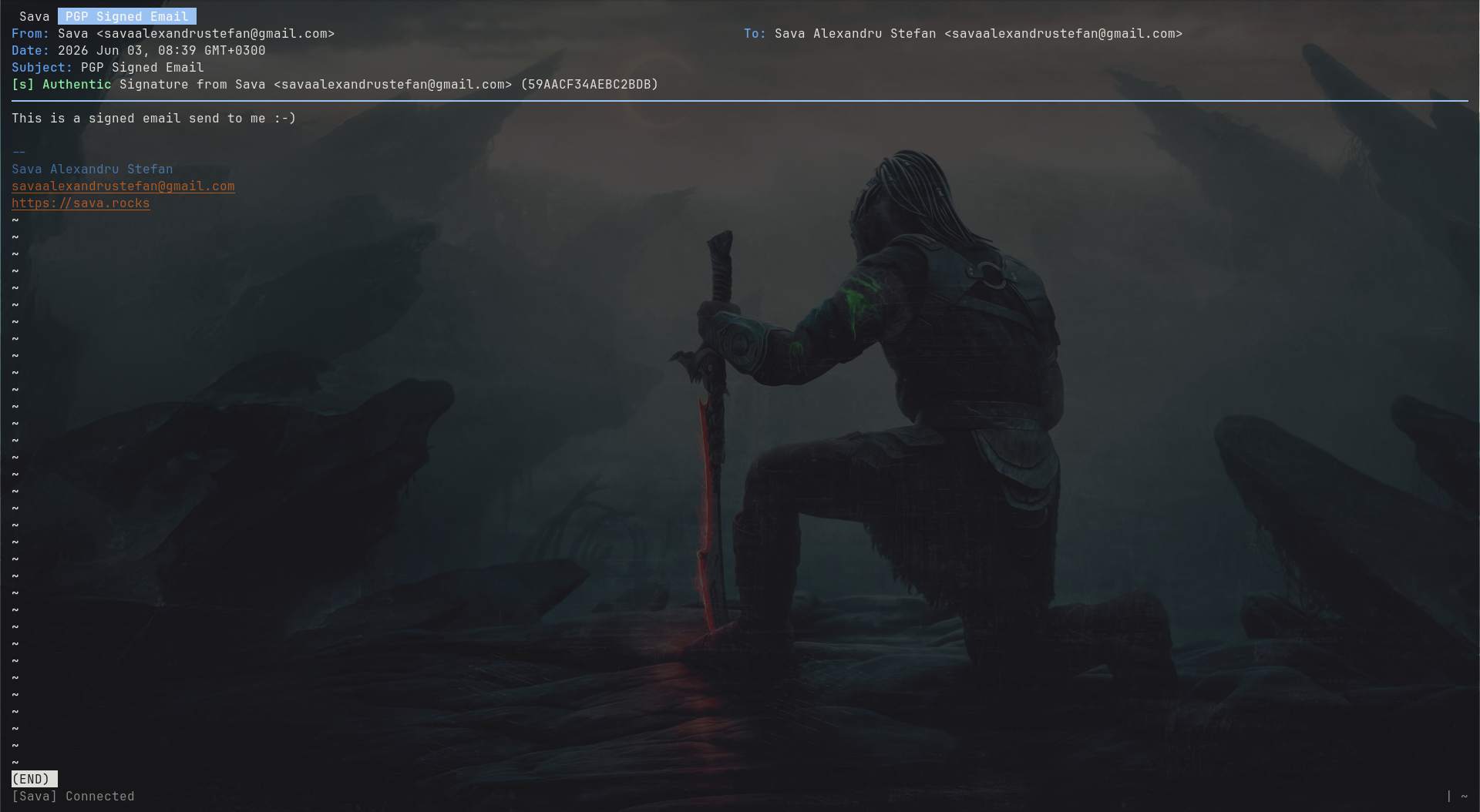
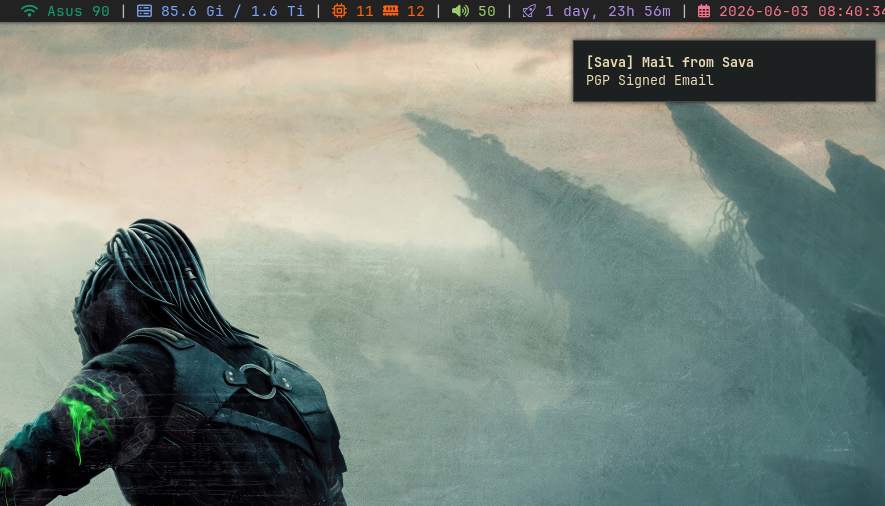
Aerc - addressbook autocomplete
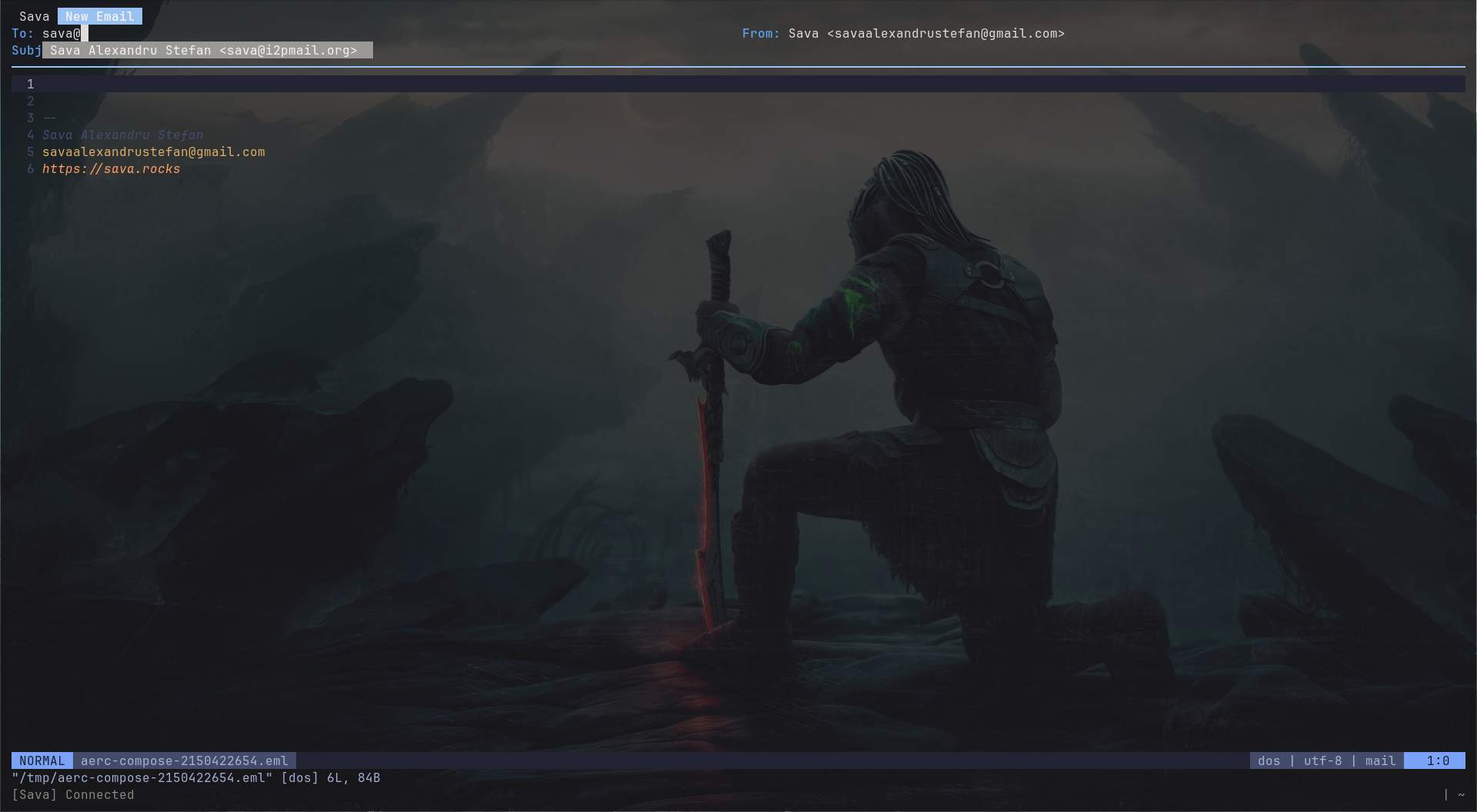
In this tutorial I will use my Gmail account. You can use essentially any email provider that supports standard IMAP and SMTP access.
What's needed
- aerc - terminal email client
- Gmail account or any other IMAP and SMTP provider
- pass - Unix password manager backed by GPG
- khard - command-line contacts manager using vCard files
- gnupg - stores secrets encrypted with GPG keys.
Install what's needed
Initialize pass
Generate a GPG key if you do not already have one:
pass needs an existing GPG key. Use the same email address for both gpg and pass.
Gmail App Password
First, create an App Password:
- open your Google account settings.
- go to Security
- enable 2-Step Verification if it's not enabled
- go to App passwords and generate a new App Password for Mail.
Store the App generated password using pass
You can verify the App password with:
Setup aerc
You don't need to create all configuration files manually. On first launch, aerc can guide you through creating an account configuration using its setup wizard. Run aerc with:
The wizard will ask for details such as:
- email address
- IMAP server
- SMTP server
- username
- password
Once the initial configuration is working, you can edit the generated files to integrate pass, customize folders, add signatures, and configure address completion with khard.
accounts.conf
Edit ~/.config/aerc/accounts.conf and add the following:
Rename folders
You can customize the sidebar in aerc with custom folder names and ditch the ugly [Gmail] ones. Edit ~/.config/aerc/folders (folder-map param in aerc.conf):
Sort folders
You can also sort and order the folders as you please. You can see how I sorted mine in the account.conf above (folder-sort).
Misc settings
In the accounts.conf above I setup a signature file, chose that unfinished emails (postponed) will be moved to the Drafts folder and that sent emails are copied to the Sent folder. (copy-to-sent = true)
Address book
Edit ~/.config/khard/khard.conf and add this config:
Your contacts/vcard files will be saved in the .config/khard/contacts/ directory. You know why ? So you can backup everything when you backup your dot files and then restow [2] them.
Now, let's instruct aerc to use and manage khard contacts. Edit ~/.config/aerc/aerc.conf and add the code below in the [compose] block:
Now, whenever you compose an email and type addresses in the TO field your contacts will appear.
Adding contacts to khard from aerc
If you receive an email from an address not in your address book you can easily use a bind. Edit ~/.config/aerc/binds.conf. In the [view] block add:
Now, whenever you are viewing an email pressing aa will prompt you to add the senders email address to your hkard address book.
New Email Notification
Edit ~/.config/aerc/aerc.conf. In the [hooks] block add:
I am using dunst. My notification stays on the screen for 1 minute or until I click on it.
Using aerc
The most used keybinds in my opinion are:
- CTRL + UP/DOWN - move between folders
- UP / DOWN - move between emails
- ENTER - opens an email
- C - opens compose window
- Rr - reply
- SPACE - selects the highlighted email
- D - deletes selected email/s
- q - closes open message
- S - vertical split
- s - horizontal split
All keybinds are easily accessible by pressing SHIFT + / (yes, the question mark ?).
Optional: PGP-Signed Email
Since this setup already uses GPG for pass, you're only a small step away from signing outgoing email. While relatively few people verify OpenPGP signatures these days, signed messages provide cryptographic proof that an email was sent by you and has not been modified in transit. Think of it as a digital wax seal for your email: visible to everyone, but difficult to forge.
You can sign an email by pressing s in the "Send this email ?" confirmation box.
aerc, gpg, pass, and khard have made email fast, efficient, and entirely keyboard-driven. The only downside is that my mouse now has so much free time that it's considering early retirement.
[2] Managing Dotfiles with GNU Stow
Good bye 🐭! Hello ⌨️!